How to Audit Email Security: Analyzing Headers to Detect Sophisticated Brand Spoofing
When an email pretending to be from an executive or a critical vendor slips past corporate filters, the raw truth of its origin is always hidden in one place: the Email Headers. Threat actors are becoming masters at manipulating display names, but they cannot completely fake the underlying network handshakes and server routing path recorded in the header metadata.
For security analysts, IT administrators, and even non-technical executives, knowing how to audit these headers is the fastest way to confirm a brand impersonation attack before someone clicks a malicious link.
In this guide, we will break down the exact parameters you need to look for, and how to use PhishPin’s Free Header Analyzer to simplify the process.
The 3 Critical Authentication Pillars in an Email Header
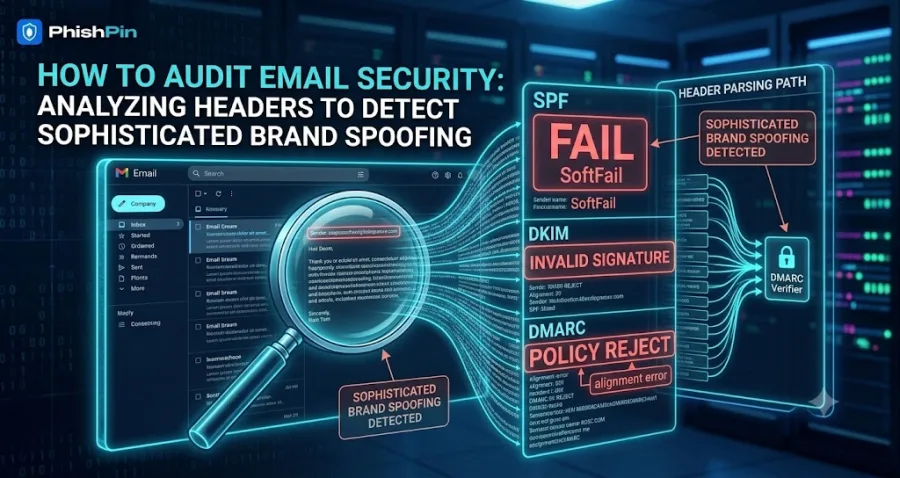
When you view the raw source code of an email, look for three authentication protocols. These tell you if the sender is legitimate or an impersonator:
SPF (Sender Policy Framework): A public list of IP addresses authorized to send emails on behalf of a specific domain. If a scammer uses a lookalike domain server, the SPF check will trigger a FAIL or SOFTFAIL.
DKIM (DomainKeys Identified Mail): A digital cryptographic signature added to the email. If an attacker intercepts or modifies the email in transit, the signature breaks, alerting the system that the message was altered.
DMARC (Domain-based Message Authentication, Reporting, and Conformance): The ultimate policy mechanism. DMARC tells the receiving server exactly what to do if SPF or DKIM fails (e.g., p=none do nothing, p=quarantine send to spam, or p=reject block entirely).
Step-by-Step: Extracting and Analyzing Headers
To check a suspicious message, you must first grab the raw header string:
In Microsoft Outlook: Double-click the email -> Go to File -> Properties -> Look at Internet Headers.
In Google Gmail: Open the email -> Click the Three Dots (More) next to the reply button -> Click Show Original.
Once you have this block of text, it can look incredibly messy and difficult to parse manually, packed with thousands of lines of server routing hops.
How to Use PhishPin's Free Header Analyzer
Instead of manually reading through lines of text code, you can use the free web diagnostics built directly into PhishPin to isolate vulnerabilities instantly:
Step 1: Head to the navigation bar on PhishPin.com and open the Header Analyzer (FREE) tool.
Step 2: Paste your copied raw internet headers directly into the analysis window.
Step 3: The tool processes the text locally inside your browser—ensuring your corporate email data remains completely private. It instantly extracts the Authentication-Results section and highlights whether the SPF, DKIM, and DMARC alignments are secure or manipulated.
Securing the Destination: Web Header Audits
If the email passes security but contains a link directing users to an external portal, the next step is verifying the safety of that landing environment.
By utilizing PhishPin's Sec Headers tool alongside the analyzer, you can verify if a target web server enforces security headers (like Strict-Transport-Security or X-Frame-Options). If a site lacks basic web security configurations, it is highly vulnerable to being hijacked or used to host credential harvesting portals.
By combining manual vigilance with PhishPin's frictionless, self-hosted testing tools, security teams can easily run triage on incoming threats without complex enterprise deployments.
Is your brand being impersonated?
PhishPin finds lookalike domains, fake profiles and phishing kits that copy your brand - and gets them taken down. Get a confidential 24-hour audit.
Get my free audit